
Watch your playlists.
Browse channels, movies and series from your M3U playlists or Xtream Codes account. Search your channels and keep favorites handy.
SageIPTV for iPhone & iPad
SageIPTV for iOS is listed on the App Store as Playlist editor & IPTV Player. Bring your own M3U playlist or Xtream Codes portal to watch live TV, movies and series, organize channels, and listen to radio.
Requires iOS 15 or iPadOS 15 or later. App Store publisher: EL Hassan Matar.
Your own sources, organized
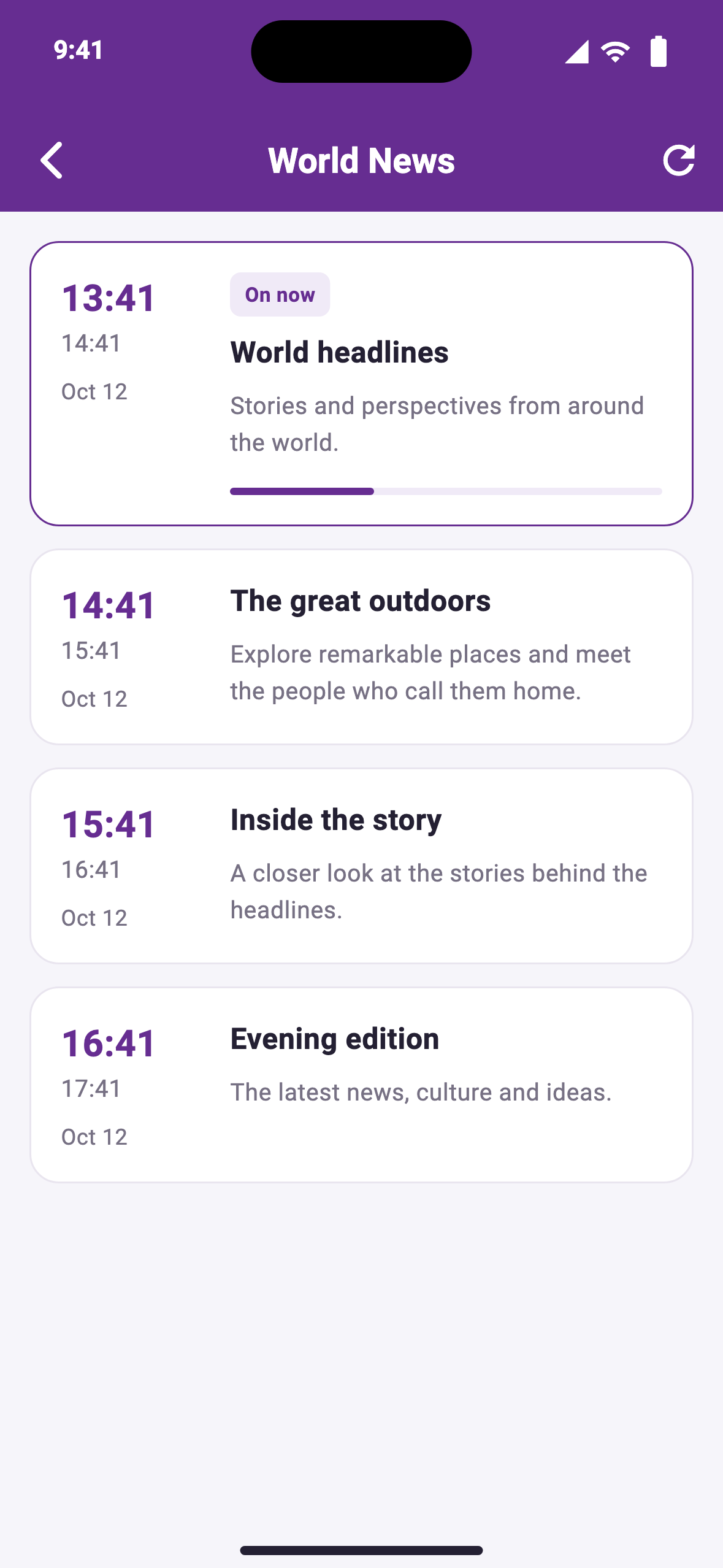
Content and program data come from the sources you add.
Browse channels, movies and series from your M3U playlists or Xtream Codes account. Search your channels and keep favorites handy.
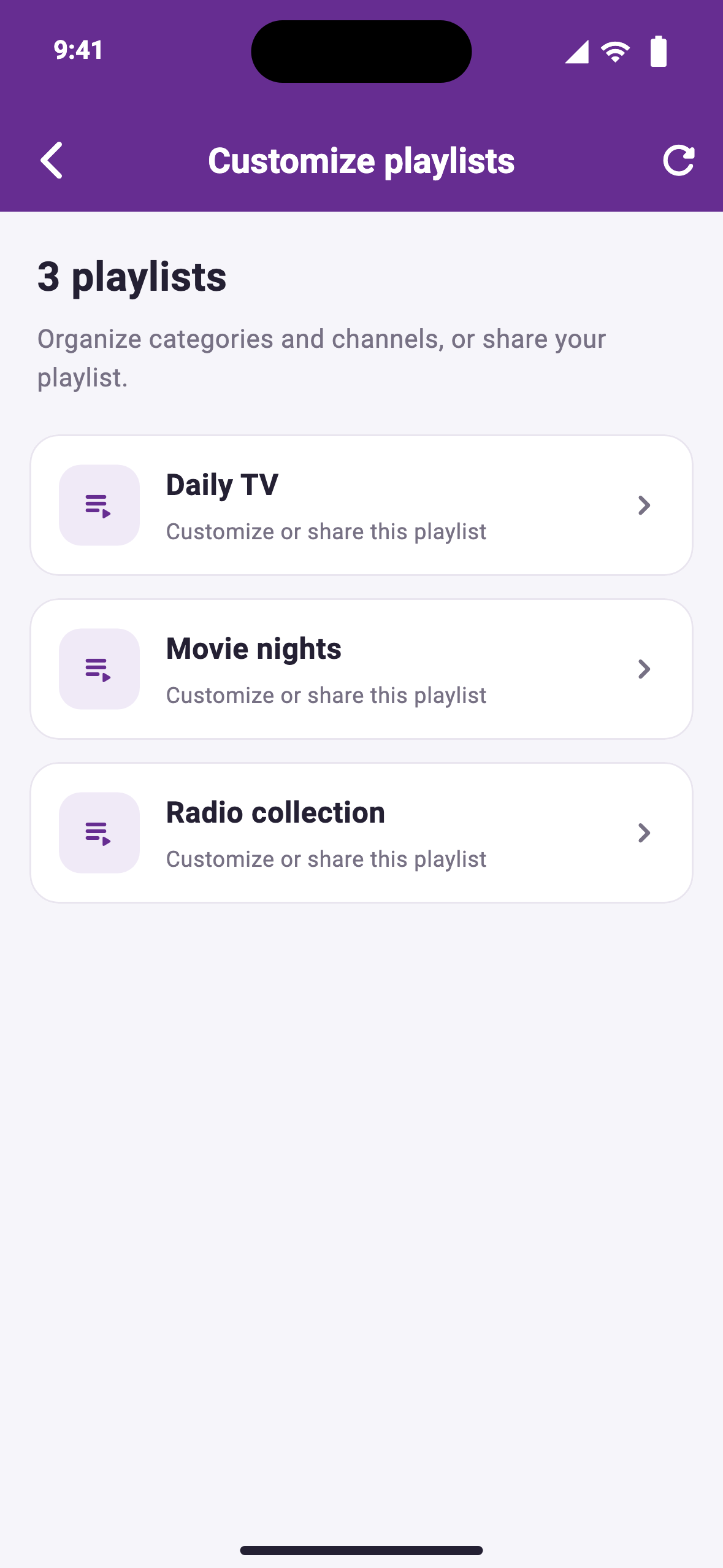
Arrange categories and channels, show or hide entries, and export a customized M3U playlist to share with another player.
Enable the audio player for radio. For the TV, cast compatible streams to Chromecast using the built-in VLC player.
For current in-app purchases, subscriptions, and regional pricing, check the App Store. For the native TV app, see SageIPTV for Apple TV.
Useful answers
No. SageIPTV is a player and playlist editor. You supply your own playlist or portal account and any content subscription it requires. A purchase in SageIPTV does not include a provider’s channels or movies.
Use M3U when your source gives you a direct playlist URL or file. Use Portal for Xtream Codes when it gives you a server address, port, username, and password. Follow the M3U guide or Xtream Codes guide for the iOS setup steps.
Yes, compatible streams can be cast using SageIPTV’s built-in VLC player. The receiver and iPhone or iPad must be on the same local network, and iOS Local Network access must be allowed. Stream and receiver compatibility still apply. See the Chromecast guide.
Turn on Enable Audio Player in settings, then open a station from your radio playlist. The player keeps recent stations for returning to them later. See the radio guide for playback and optional startup controls, whose availability depends on your installed version.